Checking Canvas Pages
To ensure your course content is accessible to all students, it is best to use the accessibility checker in the Rich Content Editor (RCE) as you add content to your course. This tool detects accessibility errors for a single element and provides guidance on how to fix issues. Here are some common issues:
- Use accessible fonts (sans-serif like Arial or Verdana).
- Ensure a high color contrast between foreground elements (like text and images) and their background.
- Include headers for sections of text, including tables.
- Include alt-text for all images.
How to Use Canvas Accessibility Checker
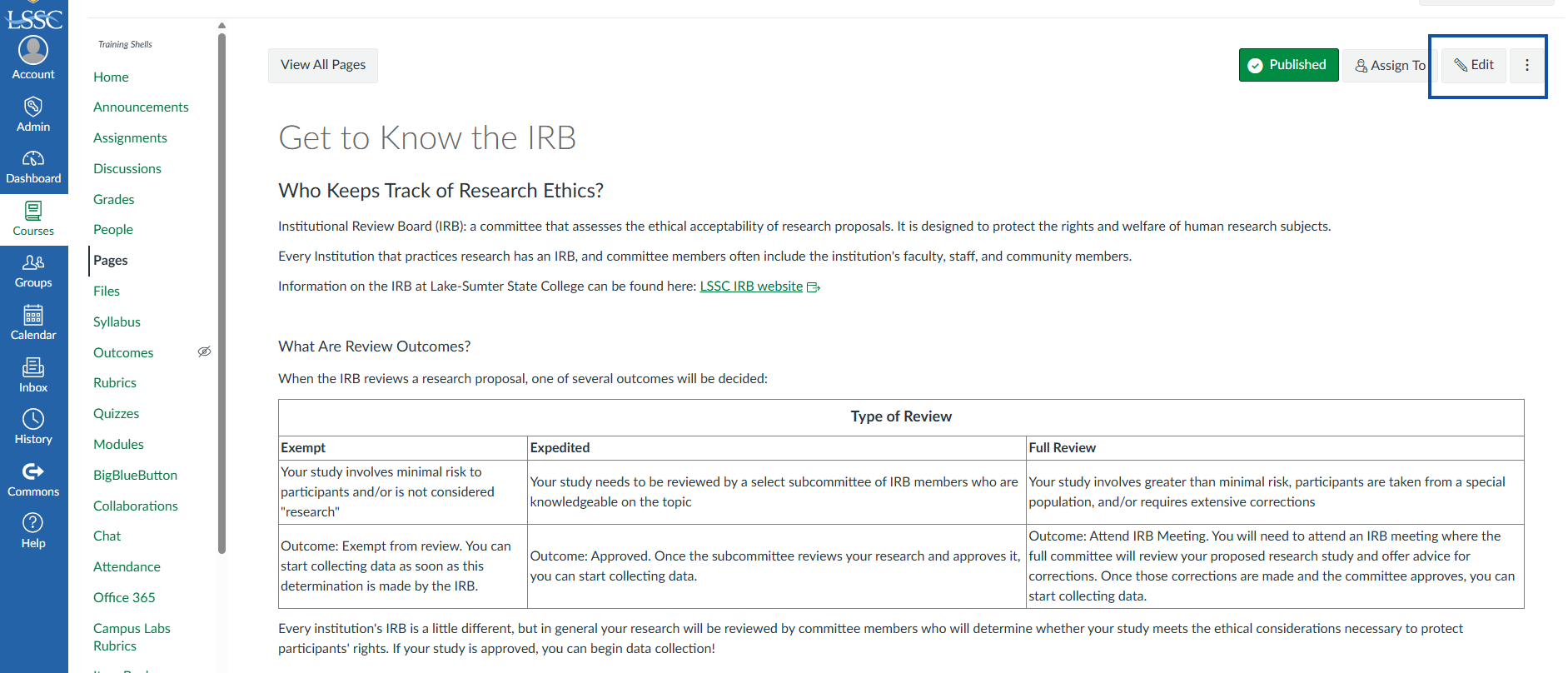
You can manually launch the Accessibility Checker on any page you are creating or editing. With your Canvas course open, select Pages and choose which page you want to check for accessibility, then select Edit.
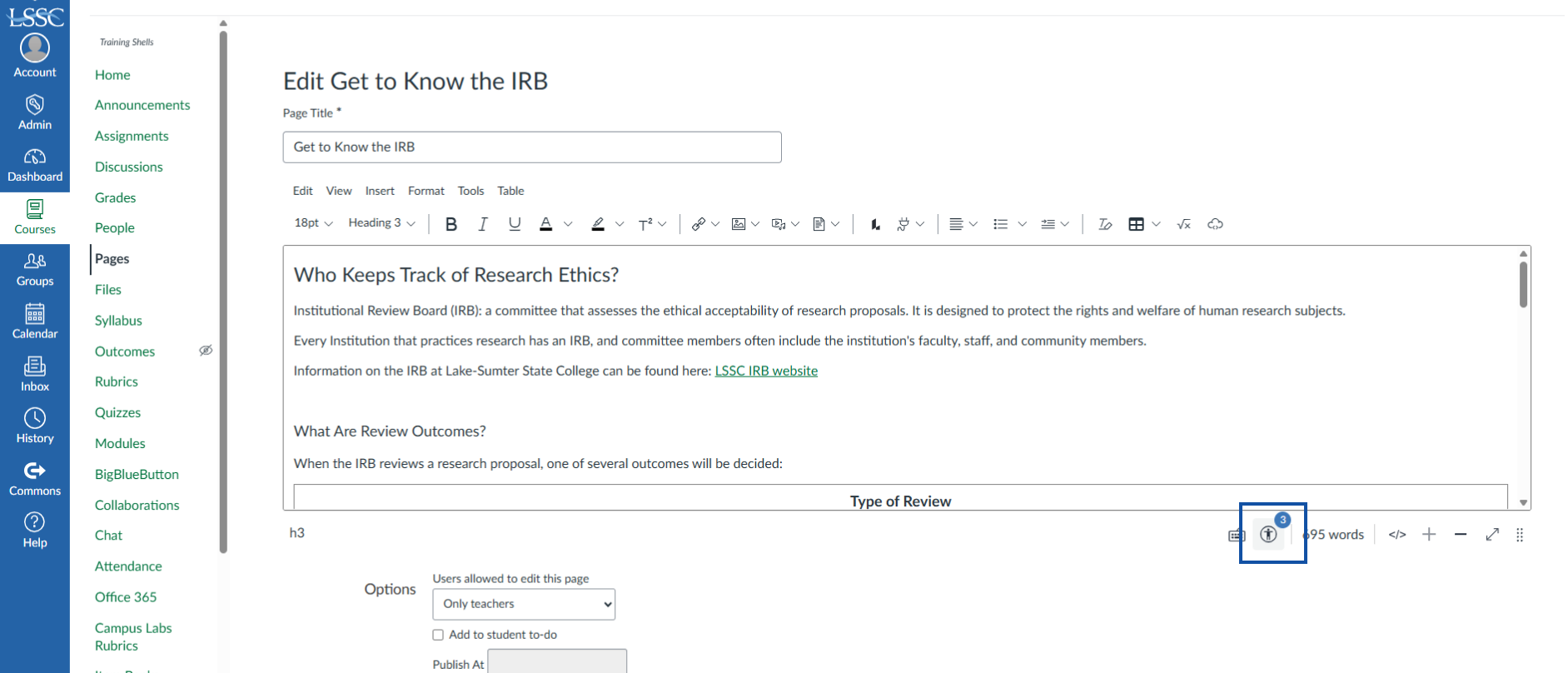
With the page opened in Edit, navigate to the bottom of the RCE and select the Check Accessibility icon, which looks like a person standing within a circle.
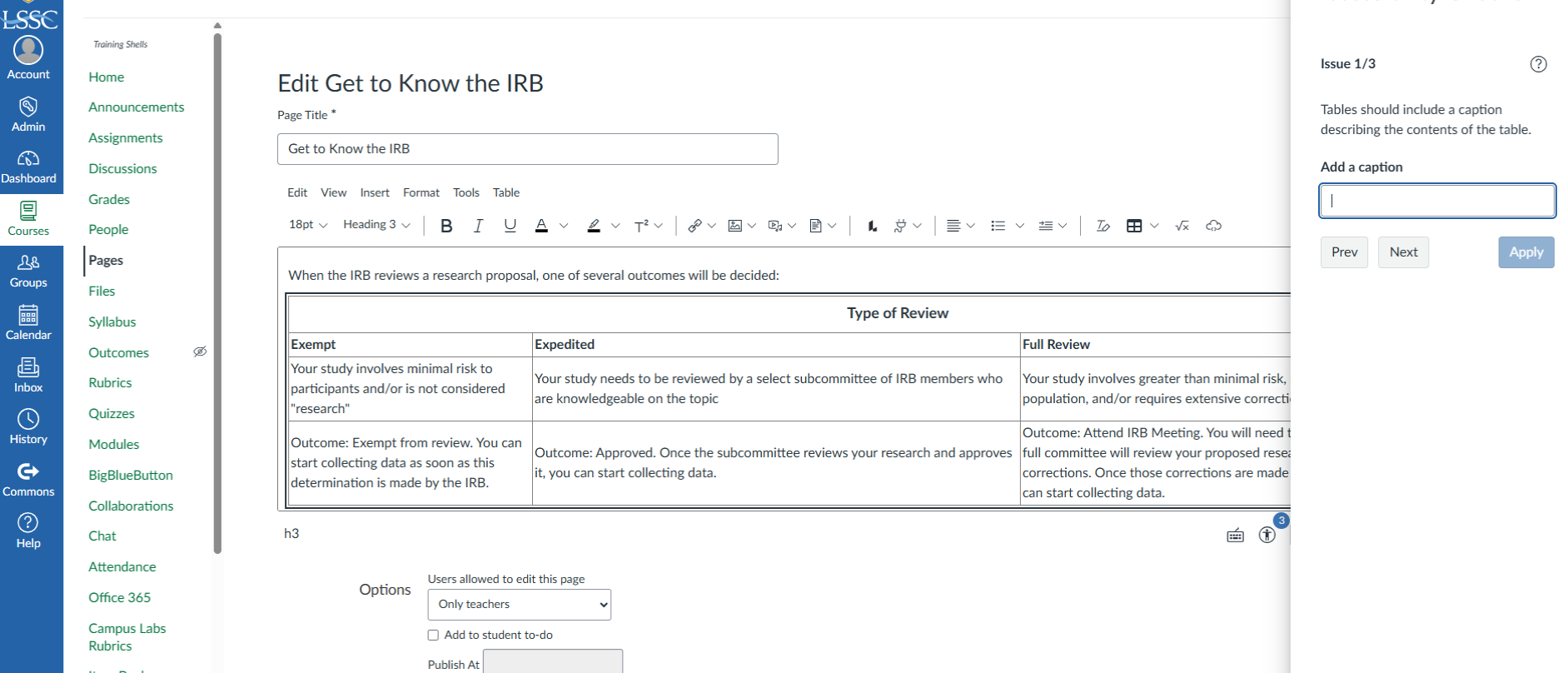
From here, a window will open to the right displaying the current Accessibility score and a breakdown of any and all issues on the page that need attention. Once all issues are addressed, your page is accessible and ready to publish!
Finding and Fixing a Course with UDOIT
New for Spring 2026, LSSC will have access to the Universal Design Online content Inspection Tool (UDOIT), which is a more comprehensive accessibility checker for Canvas courses. This tool will be able to scan an entire course, generate a report, and provide resources on how to address common accessibility issues found within your course. View the Canvas Community’s UDOIT Information page for complete information on this tool. To learn how to use UDOIT, view the UDOIT User Training Series created by Cidi Labs:
Design for Accessibility Guide